Antimatter Dimensions Save Transfer: Android to Web or Steam
Move progress to a desktop copy without risking the Android original. Export the correct save, carry the complete text privately, import it on the destination platform, and verify the result before relying on it.
The safest Antimatter Dimensions save transfer is a manual export, a protected full copy, and a test import: On Android, use the export action intended for Web or Steam, keep the source intact, and transfer the full text privately. Then use Import in the desktop client. A pinned Steam Community walkthrough describes this route; the community wiki notes that Web and Steam saves use platform storage.
Menu labels and compatibility can change. Follow the current in-game prompts, back up both sides, and verify the imported run. This guide covers Android to desktop Web or Steam; it does not promise reverse compatibility or automatic cloud sync.
The Short Antimatter Dimensions Save Transfer Route
Treat migration as copying, not merging. Back up an existing desktop run, export Android, move the complete text, and import it into the chosen client. Compare familiar milestones before playing.
Import can replace destination progress. Label exports, retain both backups, and keep Android intact until desktop reload succeeds.
- Export the Android save using the Web or Steam transfer option shown in your current game build.
- Keep an untouched backup and move the complete export text to your computer privately.
- Back up any existing Web or Steam destination before importing.
- Import once, confirm the expected progress, and keep both original copies until the result is stable.
Back Up the Android Save and Desktop Destination
Decide which run to keep before opening Import. Preserve any valuable Web or Steam progress first; this is your rollback if you choose the wrong file or the clients behave differently.
Leave Android intact while testing. Save a dated export as a plain-text file, for example `antimatter-dimensions-android-before-transfer.txt`. Prefer private storage to an open notes app or shared clipboard history.
- Record which device and platform each export came from.
- Keep the original text unchanged; make a separate working copy if you need to inspect it.
- Close duplicate game tabs or clients before importing so you can see which copy you changed.
- If you cannot export the destination safely, pause before replacing its progress.
Export the Android Save for Web or Steam
Open Options on the Android device with the run you want. Choose the export action intended for Web or Steam. The pinned Steam walkthrough calls it “Export to Web” and distinguishes it from other options; wording may change, so follow your build's destination label.
Copy the full result. If it scrolls, select beyond the visible screen; if the game exports a file, keep it unchanged. For clipboard text, paste once into a plain-text file and check both ends. Line wrapping alone does not prove the export was split.
If the matching option is missing, consult current in-game help before trying a generic backup or cloud action. Keep Android and its local data until desktop verification is complete.
- Open Options on the Android save you intend to keep.
- Choose the export action that names Web or Steam, if it is available in your version.
- Copy or save the complete result without editing, trimming, or reformatting it.
- Leave the Android game and its local data intact until the desktop copy has passed verification.
Move the Complete Save String to Your Computer
Treat the export as a private backup. Prefer a cable, private local transfer, or storage you control. Avoid public paste pages and chats: links may be forwarded, indexed, or retained. The older community walkthrough uses a paste host, but a public service is not necessary for copying and importing a save.
If using a cloud drive or messenger, restrict access and remove the temporary copy afterward. Do not attach the save to a support post; describe the platform and error instead.
Compare source and copy before import: check the first and last characters and the full length. A local checksum can confirm the files match, but it cannot prove the destination supports that save.
- Keep the export in plain text unless the game itself supplies a different file format.
- Do not add quotation marks, spaces, headings, or line numbers around the save.
- If a transfer service reformats long text, switch to a file-based method you control.
- Remove temporary copies from shared devices and clipboard history when practical.
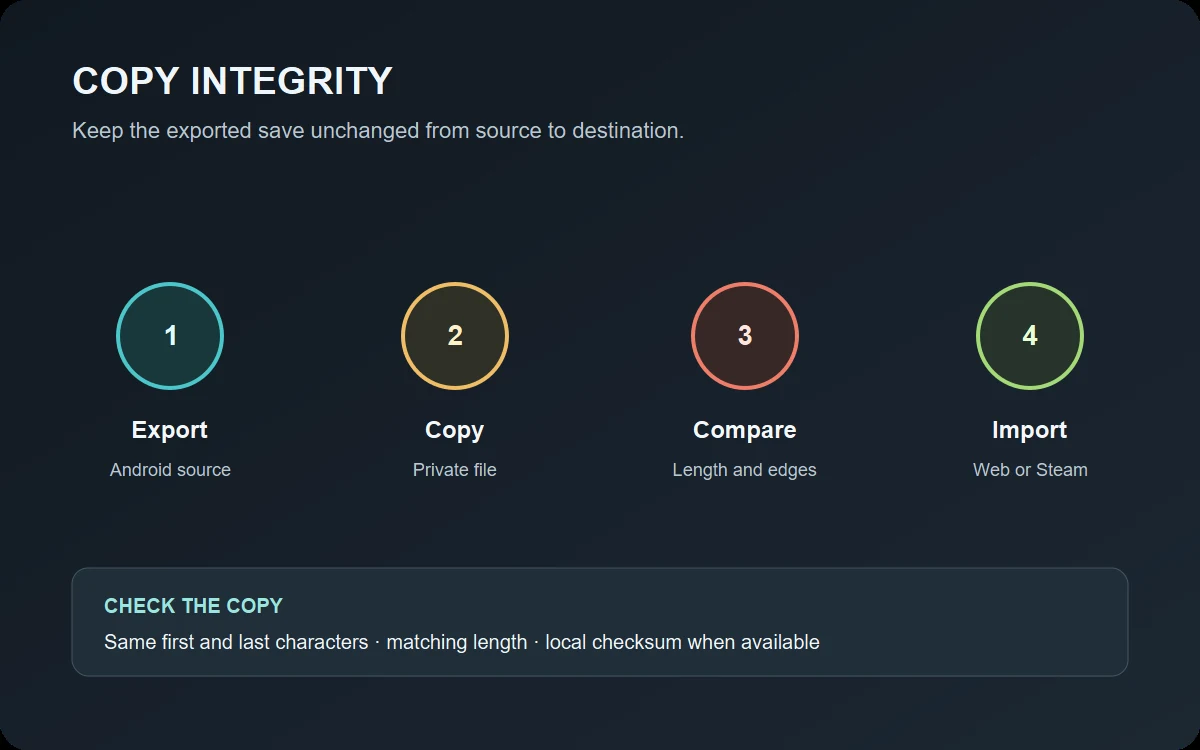
Import the Save into Web or Steam
Open the intended Web or Steam client, choose Import in Options, and select or paste the complete export. Keep the Android source and pre-import destination backup in separate files.
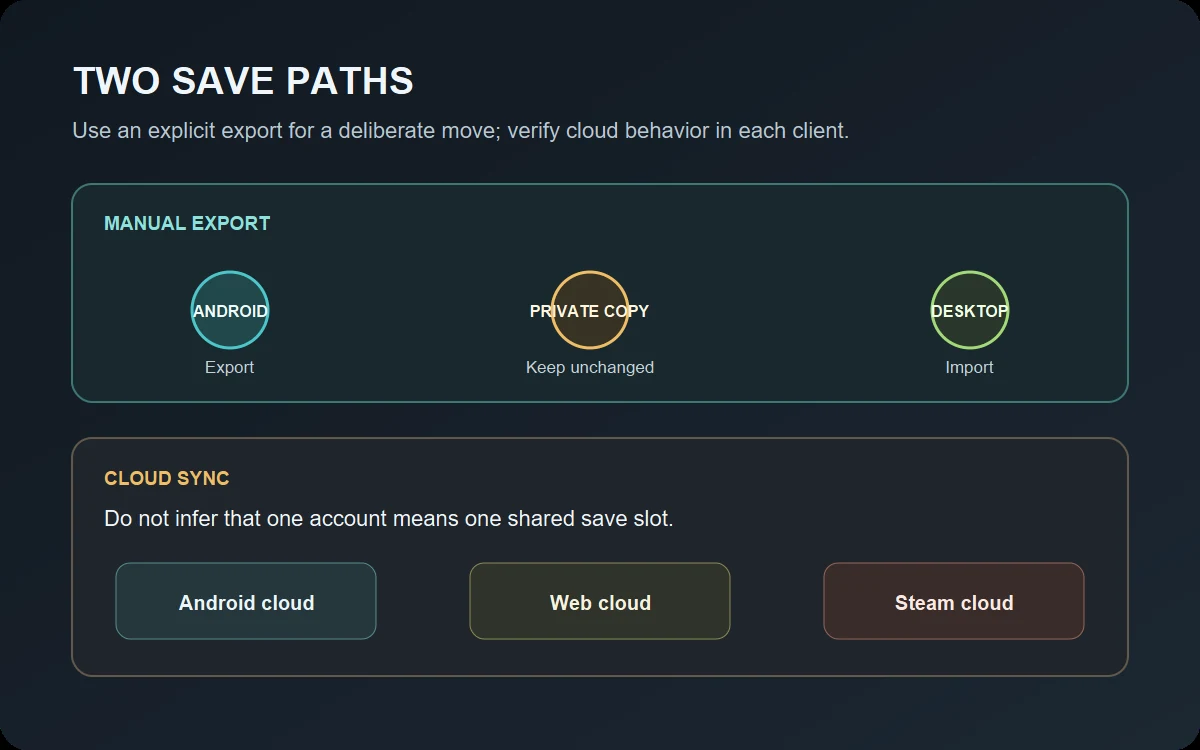
Do not assume the same account shares a save slot across platforms. Community reports describe differences in some versions; use the explicit export route and verify in your client.
If Import rejects the save, cancel and recheck the destination, file, and copy. If accepted, wait for the game to reload before doing anything else. Avoid rapid repeated imports that obscure which file loaded.
- Open Web or Steam and confirm the destination platform before changing its save.
- Use the game's Import option and choose the complete transferred export.
- Accept the replacement only after you have protected any destination progress.
- Wait for the imported save to load, then stop before starting a second client or tab.
Verify the Desktop Save Before Continuing
Compare the prestige layer, a major currency, a known achievement or challenge, and expected automation. Screen formatting can differ, so check several milestones instead of one rounded value.
Reload the desktop game and confirm the progress persists. Then create a new destination export. Keep the Android source and pre-import backup until the reopened copy is correct.
| Check | What to compare | Why it helps |
|---|---|---|
| Run identity | Prestige layer, major currency, and a remembered milestone | A broad match is more reliable than a single rounded value. |
| Unlocked content | A known achievement, challenge completion, or feature | It can reveal that a different or partial save was imported. |
| Automation | Autobuyer or Automator state you expect to keep | Platform versions may not expose every feature in the same way. |
| Persistence | Close and reopen the destination, then confirm the state | This catches a save that appeared briefly but did not persist. |
Fix Common Antimatter Dimensions Import Problems
If progress is wrong, stop and preserve every remaining backup. Identify the source export and destination that produced it before trying again.
For rejection, check the original copy for truncation or formatting. Compressed saves may look unreadable; do not decode or edit them with generic online tools.
The import says the save is invalid
Return to the untouched export, check the beginning and end, and confirm you used the destination's Import option. Do not add wrappers or try random decoders.
The desktop run is not the one expected
Stop playing, preserve the current destination export if possible, and compare the Android source file names and milestones before another import.
The save loads but a feature looks different
Check the actual platform build and its available content. A visual difference is not proof that the transfer failed; preserve both copies while you investigate.
Cloud sync restores another state
Close duplicate clients, make a fresh export of the state you want, and confirm which platform copy is active before re-enabling sync.
Manual Transfer and Cloud Saves Are Different Paths
Export/import is a copy you choose and verify; cloud save is synchronization controlled by each client. The same account or one successful load does not prove Web, Steam, and Android share a slot. Community reports describe differences in some versions, so check the live clients.
For a one-time move, use export and verify locally. Choose one platform to continue on, keep a recovery copy, and avoid editing the run in two clients at once.
Antimatter Dimensions Save Transfer FAQ
How do I transfer an Antimatter Dimensions save from Android to Steam?
Use Android's Web or Steam export, preserve the complete copy, then import it through Steam Options. Back up existing Steam progress and verify the run.
Can I move an Android save to the Web version instead?
A pinned community guide describes Android export for Web and desktop import. Follow current prompts and keep the original; compatibility may change.
Do I need a public paste site to transfer the save?
No. A private local file or transfer method you control is safer than a public paste site.
Why does my Android cloud save not appear on Web or Steam?
Cloud behavior may differ by platform or build. Use explicit export for a deliberate move and verify the destination.
Can I transfer the save back from Steam or Web to Android?
This guide does not promise a reverse transfer. Platform features and import compatibility can differ. Check the current game's own export/import help before replacing an Android save, and keep a separate backup of both sides.
What should I do if the imported save is rejected?
Return to the untouched export, confirm that the full text or file arrived unchanged, and retry only through the correct destination Import option. Do not edit a compressed or unfamiliar save with a generic converter; keep both backups while checking the platform version.
Sources and Compatibility Notes
A pinned community walkthrough describes Android export and desktop import. Cloud behavior is anecdotal and may change; follow the current in-game prompts.
- Antimatter Dimensions community wiki: How to Play — explains where browser and Steam save data is stored.
- Steam Community pinned guide: transfer an Android save to Web/Steam — describes the Android export and desktop import workflow.
- Community discussion about platform cloud saves — anecdotal reports; verify current behavior in the game.
Transfer rule: protect both sides, move the full export privately, and verify the desktop copy before playing.